You attach a PDF and the email bounces. Or an application portal says “maximum file size 2 MB” and your scan is ten times bigger. The good news is that most oversized PDFs can be made much smaller in a few minutes, as long as you know what is making them big in the first place.
Why some PDFs are so big
A PDF is a container. It can hold text, fonts, drawings and pictures, and each takes up space in a very different way:
- Text is tiny. A long typed report can be a few hundred kilobytes.
- Fonts are usually embedded so the document looks the same everywhere. They add a little, but rarely enough to matter.
- Images are almost always the problem. A scanned page is not text at all: it is a photo of the page. A phone photo or a high-resolution scan of every page quickly adds up to many megabytes.
That is why a 40-page typed contract can be smaller than a 3-page scanned certificate. It also tells you where to look: to make a PDF smaller, you nearly always need to make its images smaller.
Check your limit first
Before you change anything, find out two numbers: how big your file is now, and how big it is allowed to be.
- On Windows: right-click the file and choose Properties.
- On a Mac: select the file and press Command + I (Get Info).
- On a phone: open the file in your Files app and look at its details or info.
The limit is usually written on the upload form. For email, both Gmail and Outlook.com allow messages of up to 25 MB, and the message text counts toward that. Other providers and workplace accounts can have different limits.
Tip: aim a little below the limit. Some systems count 1 MB as 1,000,000 bytes and others (including Windows and Freetol) as 1,048,576 bytes, so a file that looks like “exactly” 2 MB may still be refused.
1. Compress the images inside the PDF
This is the quickest fix and it keeps your document as it is: same pages, same text, just lighter pictures.
- Open the PDF Compressor and drop your PDF on the box.
- Leave the level on Recommended. It makes photos and scans much smaller while keeping them sharp on screen.
- Select Compress PDF and compare the before and after sizes.
- If the file is still too big, choose Strong and compress again. Photos will look softer, but typed text in scans usually stays readable.
- Download the smaller PDF.
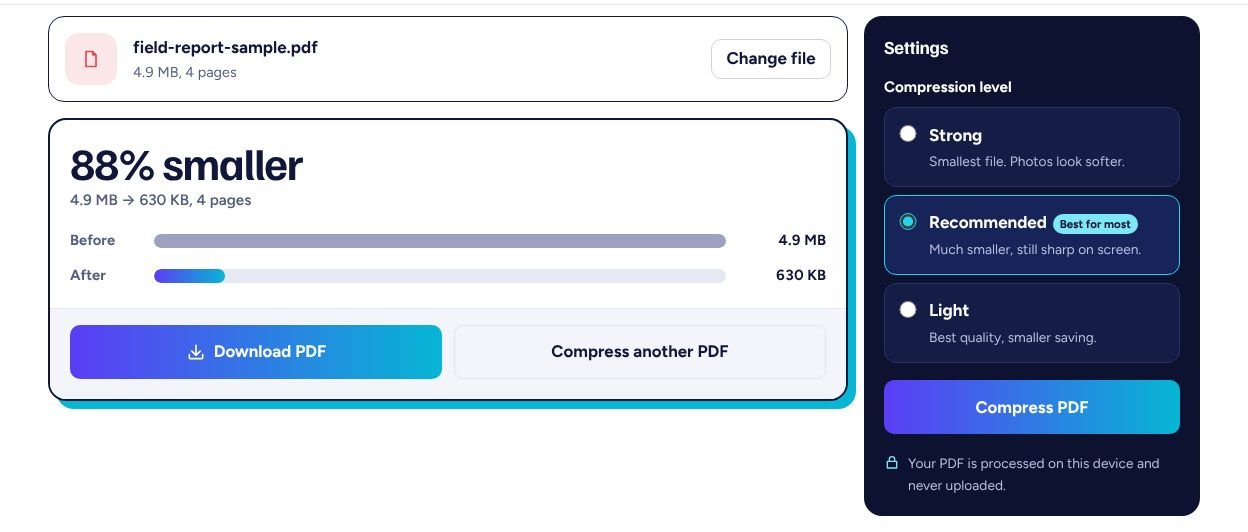
The compressor works inside your browser, so the PDF is not uploaded anywhere. It re-saves the JPEG photos and scans inside the file; text, links and fonts are left alone. That means a PDF made mostly of typed text will only shrink slightly, which is normal: there is simply very little to remove.
2. Remove pages you don’t need, or split the file
Forms often ask for one document, but people send everything they have. If the upload only needs the first page of a certificate or the signed page of a contract, sending just that page solves the problem instantly.
- Open the PDF Splitter and add your PDF. You will see a preview of every page.
- Keep Extract pages selected and click the pages you need (or type them, for example
1-2, 5). - Select Split PDF and download the new, shorter file.
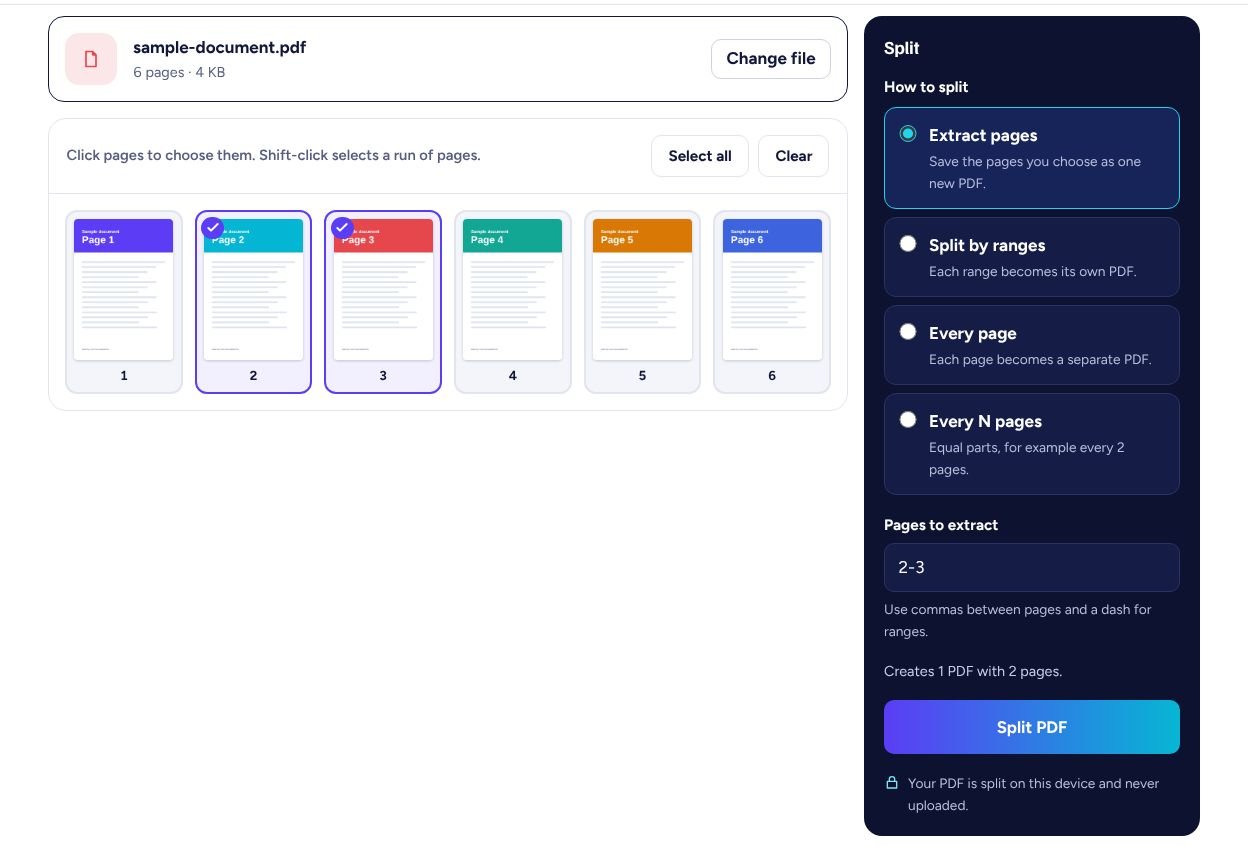
If you need every page but the portal has a per-file limit, choose Every N pages to cut the document into equal parts, then upload them one after another. To put chosen pages from several files back into one document, see how to combine PDF files.
3. Rescan with more sensible settings
If you still have the paper document, scanning it again with lighter settings often gives a better result than squeezing an oversized scan. Most scanners and scanning apps let you choose:
- Resolution: 150 to 200 DPI is enough for reading on screen and for most uploads. 300 DPI is useful for printing or very small print. Higher values make files much bigger without making text easier to read.
- Colour: choose greyscale or black and white for typed or handwritten text. Keep colour only when it matters, such as for photos, stamps or coloured forms.
- File type: choose PDF, or JPG if you plan to combine pages yourself.
Scanning with your phone? The guide How to scan documents with your phone explains how to get clear, compact pages.
4. Rebuild a stubborn scanned PDF
Occasionally a scanned PDF hardly shrinks at all. This can happen when the scanner stored its pages in an image format other than JPEG. For scans only, you can rebuild the file:
- Turn each page into an image with PDF to JPG at 150 DPI.
- Put the images back into one PDF with JPG to PDF, choosing A4 or Letter pages.
- If needed, run the new file through the PDF Compressor.
Use this only for scans. Every page becomes a picture, so any text you could select or search before will no longer be selectable, and links stop working. For typed documents, use methods 1, 2 or 5 instead.
5. Send a link instead of an attachment
Some files are simply large, such as a long illustrated report. For email, a cloud storage link avoids the limit entirely: Gmail does this automatically for large attachments by adding a Google Drive link, and Outlook.com lets you share files from OneDrive. Upload forms, however, usually need the file itself, so compressing or splitting is the better route there.
Check the result before you send it
A smaller file is only useful if it is still readable. Before you send or upload it:
- Open the new PDF and zoom in on the smallest text, signatures and stamps.
- Check that every page is there and in the right order.
- Keep your original file until the new one has been accepted.
Frequently asked questions
Does compressing a PDF reduce its quality?
It reduces the quality of the photos and scans inside it, not the text. At a moderate setting the difference is hard to see on screen. Zoom in on the result to check, and use a lighter setting if fine details matter.
Why did my PDF barely get smaller?
It is probably made mostly of text, which is already compact, or its images are stored in a format the compressor does not re-save. Try removing unneeded pages, or, for scans only, rebuild the file as described in method 4.
Is it safe to compress a confidential PDF online?
With Freetol, the PDF is processed by your own browser on your device and is not uploaded. For any online tool, check how it handles your files before using it with confidential documents.
How small can a PDF get?
There is no fixed answer. A one-page scan saved at 150 DPI in greyscale is often well under 1 MB, but the result depends on the page, the scanner and the settings.
Tools used in this guide
All of them are free, need no sign-up, and work in your browser without uploading your files.