A QR code lets someone open a web page or join your Wi-Fi just by pointing their phone camera at it. Making one takes seconds. Making one that scans first time on a poster, a table card or a business card takes a little more thought about size, contrast and testing. This guide covers both.
First, know the difference between static and dynamic codes
- Static QR codes contain the information itself, such as the web address or the Wi-Fi password. They work forever, need no account and don’t track anyone. The catch: once printed, you can’t change what they point to.
- Dynamic QR codes contain a short link to a company’s server, which then redirects to your real address. You can change the destination later and see scan counts, but they depend on that company: if the subscription ends or the service closes, the printed code can stop working.
Freetol’s QR Code Generator makes static codes. They are a good fit when the destination won’t change, such as your website’s home page, a menu page you control, or your Wi-Fi network.
Make a QR code for a link
- Open the page you want to share in your browser and copy its full address from the address bar, including
https://. - Open the QR Code Generator, keep Link or text selected, and paste the address.
- The code appears immediately. Choose an Image size: Medium for screens, Print (2048 px) for printing.
- Download it as PNG (for documents, slides and social media) or SVG (for designers and printing, as it stays sharp at any size).
Shorter is easier to scan. Long addresses with tracking codes make a denser pattern of smaller squares. If your link ends in a long string after a question mark, check whether a shorter version of the address works too.
Make a QR code for your Wi-Fi network
A Wi-Fi code saves guests from typing a long password. Recent iPhones and Android phones can join a network from one, either with the camera or from the Wi-Fi settings screen. See Apple’s guide to scanning a QR code with an iPhone or iPad and Android’s help page on connecting to Wi-Fi networks.
- In the QR Code Generator, choose Wi-Fi.
- Type the network name (SSID) exactly as it appears in your phone’s Wi-Fi list, including capital letters and spaces.
- Type the password exactly. Special characters are handled for you.
- Leave Security on WPA / WPA2 / WPA3 unless your router uses something else. Tick “hidden network” only if your network doesn’t appear in the Wi-Fi list.
- Download the code, then test it with a phone that isn’t already connected (see Test before you print).
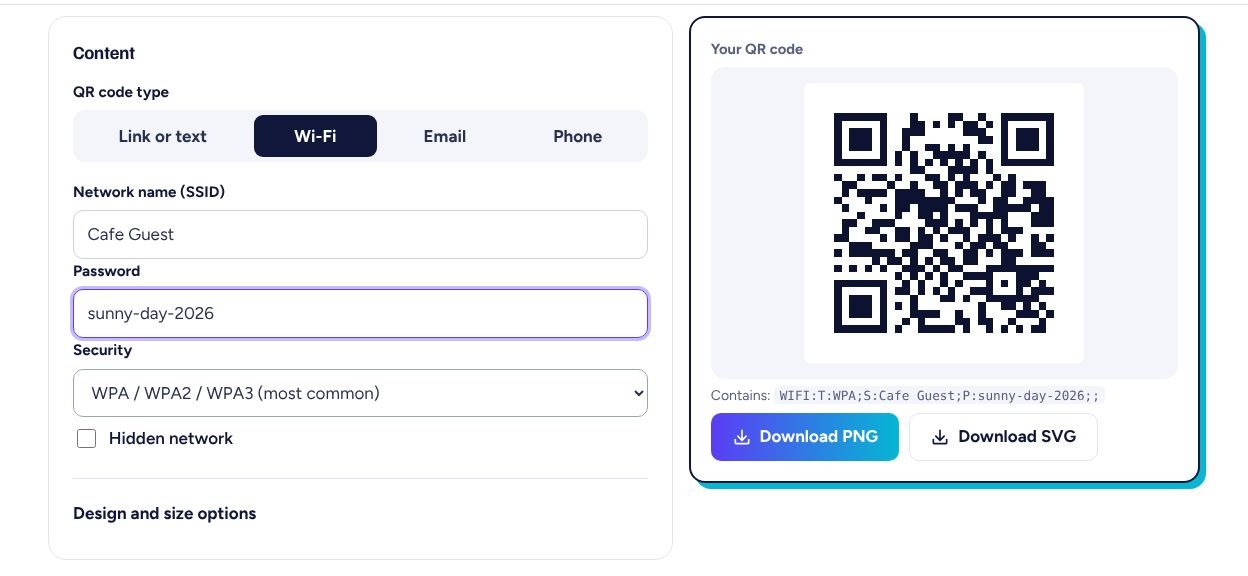
Anyone who can see the code can join. The password is stored inside the code as plain text, so anyone who scans it with a QR reader app can see it. For a shop, café or office, put the code on a separate guest network if your router supports one.
Colours and error correction
- Keep strong contrast: a dark code on a white or light background. Light codes on dark backgrounds, or two similar colours, can fail on some phones. The generator warns you if your colours may be hard to read.
- Error correction lets a code still scan when part of it is dirty, scratched or folded. Medium suits most uses. Choose High or Highest for codes that may get worn, such as stickers outdoors; the pattern becomes denser, so print it a little larger.
Printing it the right size
Most scanning problems come from codes that are too small for the distance, or crowded by other graphics. Two widely used rules of thumb help:
- Size: make the code roughly one tenth as wide as the distance people will scan from. About 10 cm wide for 1 metre away; about 2.5 cm for a card held in the hand. Avoid going much smaller than 2 cm.
- Quiet zone: leave a clear margin around the code, at least four of its small squares wide on every side. Don’t place text, borders or pictures inside that margin.
Print on matt paper if you can; glossy surfaces and laminated cards can reflect light and confuse cameras. For large prints such as posters, download the SVG so the edges stay perfectly sharp.
Test before you print many copies
- Print one copy at the final size.
- Scan it with at least two different phones (ideally one iPhone and one Android), from the distance people will really use.
- For links, check the page opens correctly. For Wi-Fi, test with a phone that has never joined the network, or “forget” the network first.
- Only then print the rest.
Safety tips when scanning other people’s codes
- Most phones show the web address before opening it. Read it, and don’t open links that look odd or misspelled.
- Be cautious with codes stuck over other codes in public places, such as on parking meters. Sticking a fake code on top of a real one is a known scam.
- Never enter passwords or payment details on a page opened from a QR code unless you are sure it is the real website.
Frequently asked questions
Do QR codes expire?
Static QR codes, like the ones Freetol makes, never expire: the information is inside the code. A static link code only stops working if the web page itself is removed.
Can I change the link after printing?
Not with a static code. If you expect the destination to change, point the code at a page you control, such as your own website, and update that page instead.
Can I see how many people scanned my code?
Not with a static code, because nothing sits between the scan and your link. Freetol does not track scans.
Tools used in this guide
All of them are free, need no sign-up, and work in your browser without uploading your files.